
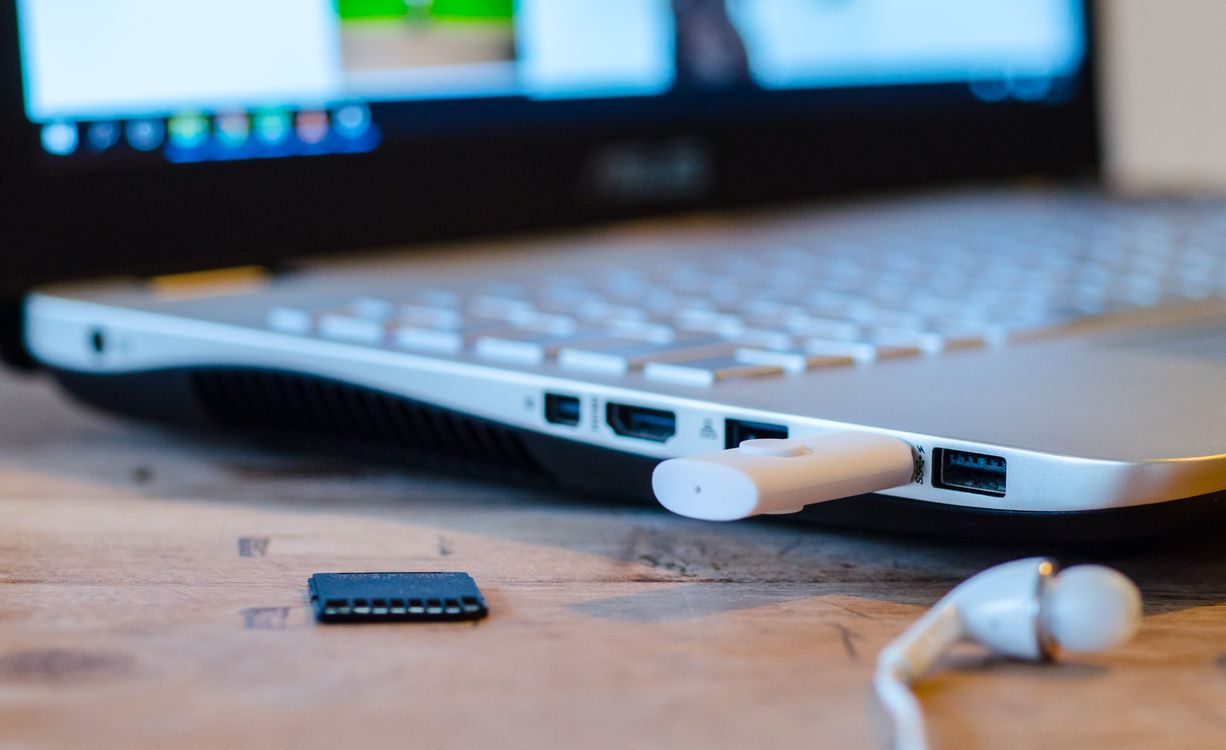
If files from your Tesla’s USB drive will not play on a computer, first check for TeslaCam/EncryptedClips. Those files contain encrypted recordings. You can view them in the vehicle that recorded them or decrypt them with Tesla’s official web tool.
This guide follows the Korean Model Y manual, checked on November 14, 2026. Availability varies by vehicle, region and software.
Start with the folder name
Connect the drive to your computer and open TeslaCam. The official manual separates saved recordings, Sentry events and encrypted clips.
| Folder | What it contains |
|---|---|
SavedClips |
Recordings saved by the user. |
SentryClips |
Sentry Mode event recordings. |
EncryptedClips |
Encrypted files that cannot play directly in a normal video player. |
For EncryptedClips, continue with decryption. Formatting deletes existing files, so copy the original footage to another storage device before taking any formatting step. Official folder and formatting guidance
On a computer, open the official web tool
- Connect the drive containing the recordings.
- Open dashcam.tesla.com.
- Sign in with a Tesla account linked to that vehicle when the footage was recorded.
- Follow the page’s instructions to decrypt and view the files.
The official address leads to Tesla account sign-in. According to the manual, footage is processed locally on your device: the browser retrieves the required decryption keys rather than uploading the clips to Tesla. Official computer-viewing procedure
Check the account at recording time
The relevant condition is being linked when the recording was made, alongside whichever account you use today. For example, if a used car’s drive still contains earlier footage, signing in as its current owner alone does not establish eligibility to view those earlier clips.
| Situation | What to check |
|---|---|
| Footage was recorded while your account was linked. | Sign in with the account linked at that time. |
| The footage predates your purchase of a used car. | Check the recording-time account requirement first. |
| It plays in the car but not on the computer. | Check for EncryptedClips and the web tool’s signed-in account. |
This table applies the manual’s recording-time account condition to common situations.
You can also view clips in the car
Reconnect the drive to the vehicle that recorded the footage. With the car in Park, open Dashcam, select an encrypted clip and use the padlock icon at the lower right. You can check a clip in the car while separately copying its original folder for storage on your computer. In-car viewer instructions
Pause Dashcam before removing the drive. Before deleting footage or formatting, check that you have copied the files you need.
Keep the original USB files
Tesla says Dashcam and Sentry Mode recordings are not available through an account-data request. Copy footage from the USB drive to another storage device for safekeeping. Keep the encrypted original while checking it in the official viewer, and distinguish files that will not play from footage that was never saved. Tesla’s recording-data guidance
This article reworks Teslickorea’s June 3, 2026 post about software2026.20. It incorporates current official PC-viewing instructions and the recording-time account requirement. For another practical guide, see four things to check when Supercharging seems slow.

Comments and questions
Post, edit or delete a comment using a name and password. Use a password you do not use elsewhere.